Published on:
Last updated on:
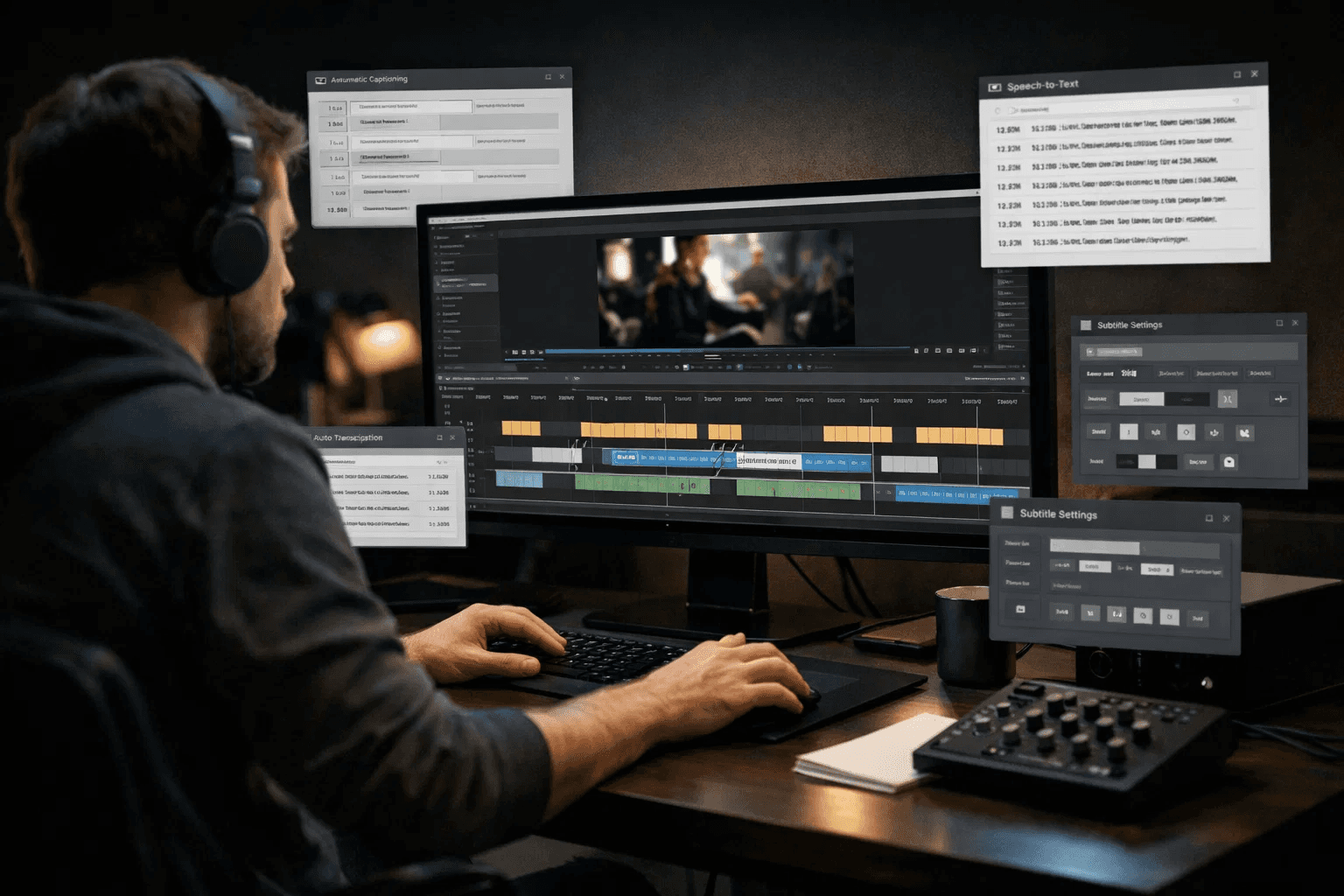
Why manual subtitling still wastes time
Manual subtitling is usually three jobs mashed together: transcription (words), timing (sync), and styling (readability). The time sink is not typing, it’s the endless micro-adjustments.
Editors on Reddit routinely mention that they bounce between options like Premiere’s auto captions and third party tools (Descript, CapCut, AutoCut, FireCut, and others) depending on the job.
Below are 8 tools that replace manual subtitling in a practical way. Some are best for “get me an SRT fast”, others are best for “word by word animated captions”, and some are best when you need full control.
Quick pick: choose based on your actual use case
If you only read one section, read this.
If you edit in Premiere Pro and want captions inside your timeline: use Premiere Pro Speech to Text.
If you want transcript first, then captions from the script: use Descript.
If you want fast social captions with minimal setup: use CapCut (but expect some frustration depending on project and platform).
If you want animated captions inside Premiere as a plugin workflow: look at FireCut or AutoCut.
If you want a browser tool for quick turnaround: VEED or Kapwing.
If you want maximum control and clean SRT edits: Subtitle Edit.
1) Adobe Premiere Pro Speech to Text (auto captions inside your edit)
If your workflow is already Premiere, this is the “least friction” choice: generate a transcript, then create captions on the timeline, then fix names and splits where needed.
Best for: YouTube, interviews, podcasts, client work where speed matters.
Why it replaces manual subtitling: transcription + caption creation happens in-app, with editing controls in the Text panel.
Simple workflow:
Window > Text
Transcribe (set language and options)
Create captions, then clean up timing and line breaks
2) Descript (transcript-first captions that stay in sync)
Descript is popular when you want to work from a transcript and export subtitles (SRT or VTT), or burn captions into an export.
Best for: Talking head videos, podcasts, interview edits, quick repurposing.
Why it replaces manual subtitling: captions are generated from the script, so you are correcting, not building from scratch.
Notes from real usage: editors do point out workflow quirks and timing control issues, so it is worth testing on your type of audio.
3) CapCut (auto captions for social, fast but not always painless)
CapCut supports “Auto Captions” (also described as “Recognise Subtitles”), with manual editing after generation across web, desktop, and mobile.
Best for: Shorts, Reels, TikTok style captions, quick edits.
Why it replaces manual subtitling: one tap generation, then edit timing/text and apply styles.
Reality check (from Reddit): some users complain about editing limitations, lag, and having to correct many lines, so it is not a guaranteed “set and forget” tool.
4) FireCut (Premiere plugin with an end to end caption flow)
FireCut is built around doing captions inside a Premiere plugin workflow, including transcription and styled captions. It also supports exporting captions as SRT or VTT.
Best for: Editors who live in Premiere and want quicker captions with styling presets.
Why it replaces manual subtitling: you generate timings automatically, then edit either styled captions or text-only captions, then export.
5) AutoCut (Premiere plugin for captions plus other repetitive tasks)
AutoCut positions itself as a Premiere Pro plugin that can generate captions (including animated captions) alongside other workflow automation features.
Best for: Podcasts, creator edits, short form factories, caption heavy workflows.
Why it replaces manual subtitling: it targets the “do it in a few clicks” loop: generate captions, style, and move on.
Editors often group tools like AutoCut with other caption makers when discussing animated captions workflows in Premiere.
6) VEED (browser based auto subtitles with speaker detection option)
VEED’s help docs outline a straightforward “upload, auto subtitle, edit” workflow, and includes an option to detect speakers.
Best for: Solo editors who want a quick web tool, agencies doing fast review loops, teams that need easy sharing.
Why it replaces manual subtitling: upload once, generate subtitles, edit in the same interface.
7) Kapwing (subtitle editor plus downloadable VTT or SRT)
Kapwing is useful when you want captions without installing anything, and when you need deliverables like VTT or SRT with previewable timing edits.
Best for: Social teams, marketing edits, quick caption exports, collaboration.
Why it replaces manual subtitling: AI transcription, then edit each line and timing while previewing, then export.
8) Subtitle Edit (control and cleanup when auto tools get messy)
Subtitle Edit is a classic “make the SRT perfect” tool. It is ideal when auto captions are close but not clean, or when you need to fix timing and formatting at scale. The project is widely used and actively maintained via its repository and releases.
Best for: Long form work, film or doc style subtitles, fixing broken auto captions, deliverables with strict formatting.
Why it replaces manual subtitling: you are refining and syncing with purpose built tools, instead of doing everything inside a NLE text box.
A practical workflow that saves the most time (no matter which tool you pick)
Use this loop to avoid rework:
Generate captions automatically (Premiere, Descript, CapCut, FireCut, AutoCut, VEED, or Kapwing)
Do one cleanup pass for: names, brand terms, and punctuation
Do one timing pass (only fix the lines viewers will actually notice)
Export SRT or VTT if the platform supports it; burn in only when needed
A quick note on accuracy (so you do not get burned)
Every auto caption tool will be wrong sometimes. The highest ROI habit is simple: always review anything that impacts meaning (names, numbers, claims), then ship.
This matches what editors say in the wild too: auto captions help, but they are not perfect, and different tools fail in different ways.