Published on:
Last updated on:
Beginner video editors have more learning options than ever in 2026, but that has made the decision harder, not easier. A new editor can spend weeks jumping between DaVinci Resolve tutorials, Premiere Pro playlists, CapCut tips, YouTube breakdowns, creator courses, Reddit threads, and paid classes without actually finishing a single edit.
That is the wrong way to learn.
The best learning path is simpler: choose one editing tool, finish small projects, study why good edits work, and use courses or channels only when they help you complete the next project. A good editing course is not the one with the most effects. A good channel is not the one with the flashiest thumbnail. The best resources teach you how to think like an editor: how to shape attention, build rhythm, remove weak moments, support a story, and deliver a video that feels intentional.
This guide is based on research across Reddit discussions, X posts, YouTube channel pages, official course pages, and community recommendations from video editing spaces such as r/VideoEditing, r/davinciresolve, r/premiere, and r/editors. The strongest pattern was clear: beginners need software basics first; then they need storytelling, pacing, taste, workflow, and practice.
Below is a practical guide to the video editing courses and YouTube channels that are most useful for beginner editors in 2026, plus advice on how to use them without getting stuck in tutorial mode.
What makes a video editing course or YouTube channel worth following?
A useful editing resource should help a beginner do three things: finish projects, understand decisions, and build better judgment.
Many beginners start by searching for “best video editing course” and expect one answer. In reality, the right answer depends on what kind of editor they want to become. A gaming editor, wedding editor, documentary editor, YouTube editor, short-form creator, and assistant editor all need different examples. Still, the best resources share a few traits.
First, they give you a clear starting point. A beginner should not need to know codec settings, proxies, color management, audio compression, and motion graphics before making a basic sequence. The best beginner courses start with importing footage, organizing media, making cuts, adjusting audio, adding simple text, exporting, and fixing common mistakes.
Second, they include real follow-along practice. Watching a tutorial without editing alongside it creates false confidence. You feel like you understand the lesson, but the moment you open your own project, everything slows down. Resources with downloadable footage, project files, or clear editing exercises are usually better than passive theory videos.
Third, they explain why an edit works. Beginners often ask, “How do I make this transition?” Better editors ask, “Why does this moment need a cut?” The strongest teachers explain pacing, tension, clarity, emotional response, and viewer attention. This is the difference between learning software and learning editing.
Fourth, they match your chosen software. Do not start with three editing apps at once. Pick one tool: DaVinci Resolve, Adobe Premiere Pro, Final Cut Pro, or CapCut. Learn enough to finish 5 to 10 simple projects. After that, changing tools becomes easier because the editing principles transfer.
Fifth, they do not promise instant mastery. Any resource that claims you can become a professional editor after a few quick videos should be treated carefully. Editing is learned through repetition, feedback, and judgment. Courses can shorten the path, but they cannot replace hours spent cutting real footage.
The best way for beginners to learn video editing in 2026
The smartest path is not “watch everything.” It is “learn only what you need for the next edit.”
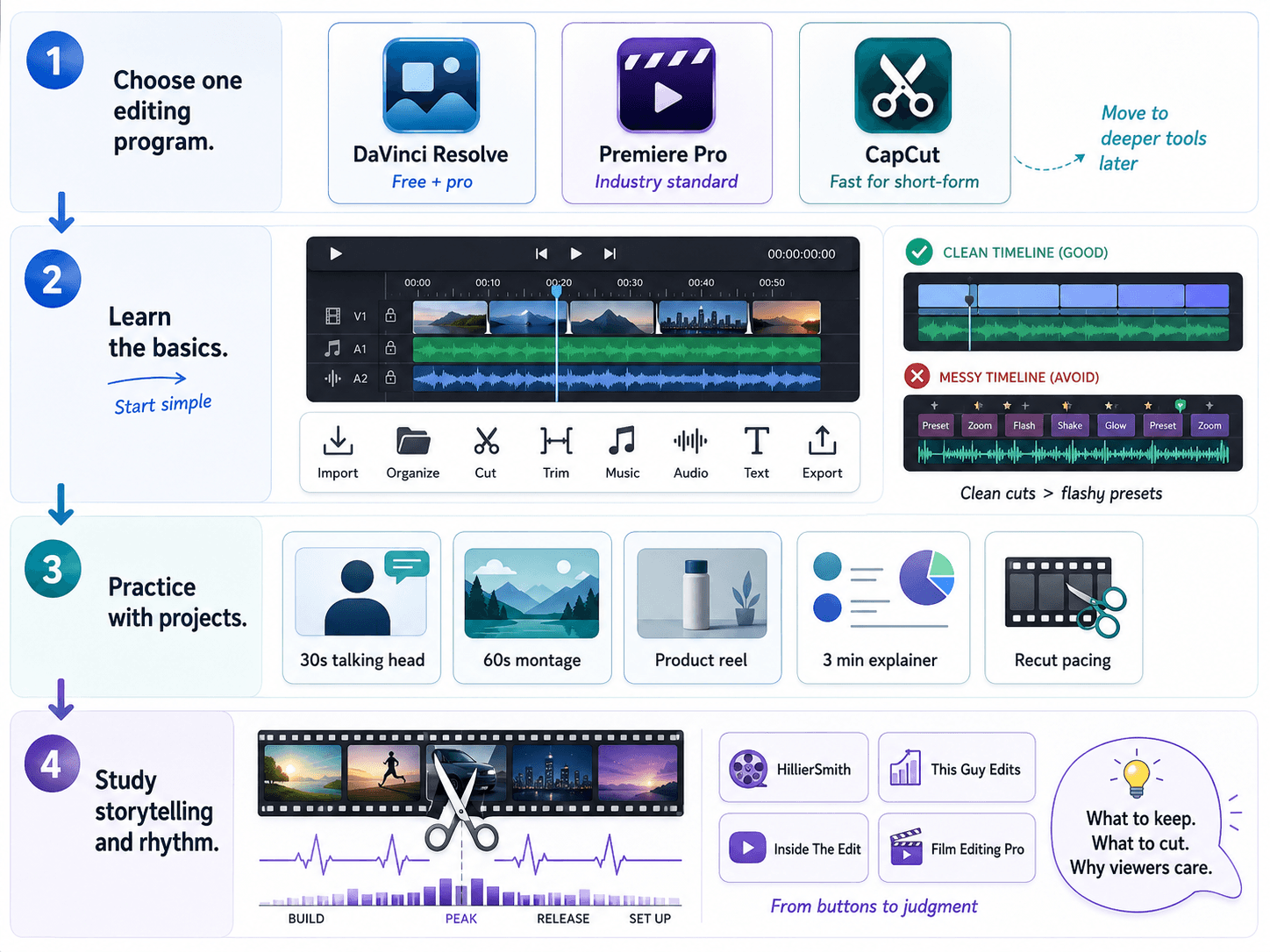
Start with one editing program. If you want a free but serious tool, choose DaVinci Resolve. It gives you editing, color, sound, effects, and delivery in one app. If you want to work in creator, agency, social, or brand video pipelines, Premiere Pro is still widely used and has a huge learning base. If you want short-form social edits and speed, CapCut can be useful, but it is better to move into Resolve or Premiere once you want deeper control.
Then learn the basic workflow: import, organize, cut, trim, add music, clean audio, use simple text, export. Do not start with complex transitions or advanced effects. A clean cut with good timing beats a messy edit full of presets.
After that, practice with real constraints. Edit a 30-second talking-head video. Cut a 60-second montage. Make a before-and-after product reel. Edit a 3-minute YouTube-style explainer. Recut a scene with different pacing. These projects teach more than watching ten unrelated videos.
Once you can finish simple videos, study storytelling and rhythm. This is where channels such as HillierSmith, This Guy Edits, Inside The Edit, and Film Editing Pro become more valuable. They help you move from “I know the buttons” to “I know what to remove, what to keep, and why the viewer cares.”
Best free course for DaVinci Resolve beginners: DaVinci Resolve training by Blackmagic Design
Link: https://www.blackmagicdesign.com/products/davinciresolve/training
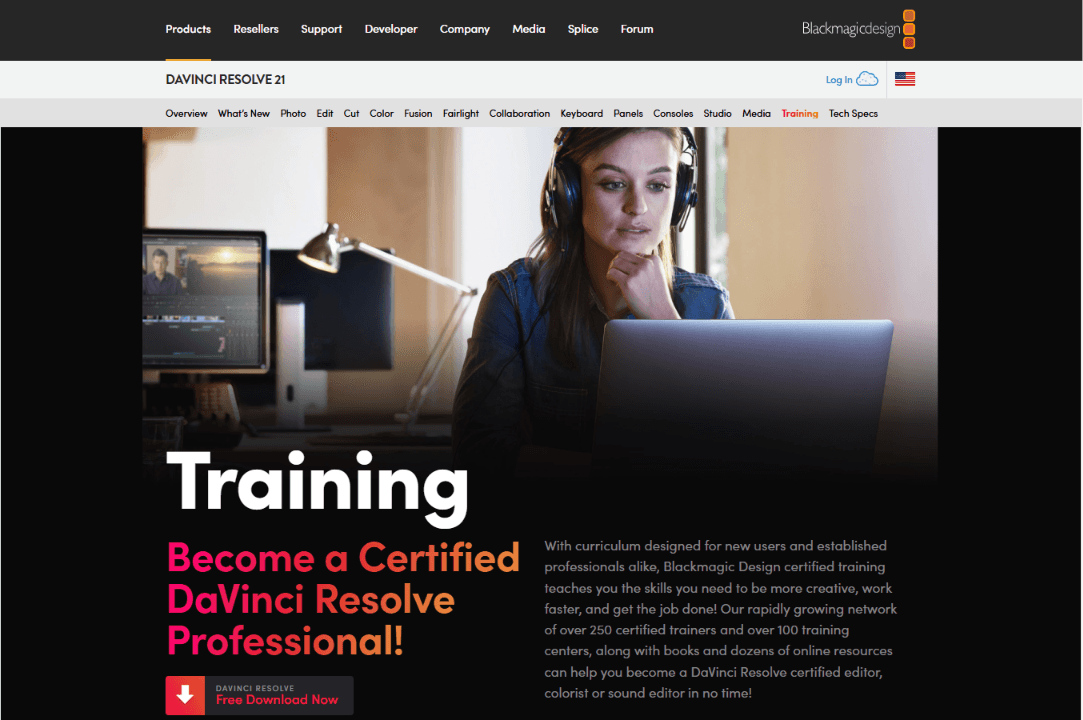
For beginners who want to learn DaVinci Resolve, the official Blackmagic Design training page is the safest starting point. It is free, structured, and built around hands-on lessons. The page includes training books, lesson files, and official videos that cover editing, color, Fusion, Fairlight, and delivery.
This matters because DaVinci Resolve can feel overwhelming at first. It is not just an editing app; it also includes color grading, audio post-production, motion graphics, visual effects, and export tools. A random YouTube search can throw beginners into advanced pages and workflows too early. The official training gives you a cleaner order.
Who it is best for:
Beginners who want a free professional editing tool
Editors who want to learn editing, color, audio, and delivery in one app
Learners who prefer structured lessons with practice files
Anyone who wants a serious foundation before buying a paid course
How to use it:
Do not try to complete every training book before making your own projects. Start with the beginner editing material, follow along with the lesson files, then immediately make a simple video with your own footage. Repeat that cycle: lesson, practice, project.
Best free course for Premiere Pro beginners: Adobe Learn Premiere Pro
Link: https://www.adobe.com/learn/premiere-pro
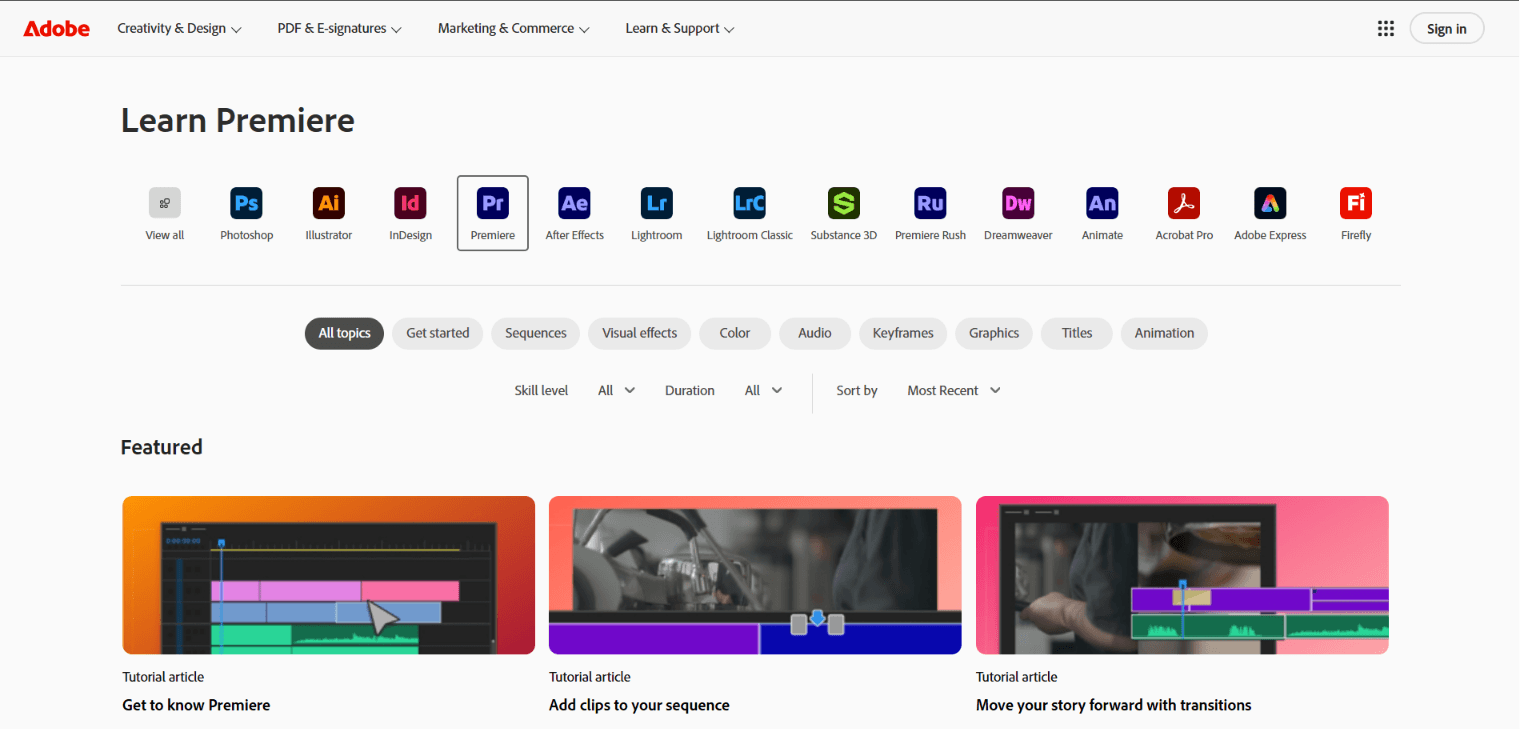
Adobe’s official Premiere Pro learning hub is a strong first stop for new Premiere users. It covers the essentials: getting started, creating and editing sequences, importing media, timeline basics, text, audio, and export.
The main benefit is accuracy. Premiere Pro changes over time, and old tutorials can sometimes show outdated panels, menus, or workflows. Official Adobe learning material gives beginners a clean reference point before they start exploring creator-made tutorials.
Who it is best for:
Beginners learning Premiere Pro for YouTube, social, brand, or client work
Editors who already use Adobe tools such as Photoshop, Illustrator, or After Effects
Learners who want current software basics before following creator channels
How to use it:
Use Adobe’s beginner lessons to learn the interface and basic edit flow. Then move to Justin Odisho or Premiere Gal for practical “how do I make this?” tutorials. Adobe gives you the base; creator channels help you solve real editing problems.
Best DaVinci Resolve YouTube teacher for beginners: Casey Faris
Channel: https://www.youtube.com/channel/UCdfDjoLF5L6lLuDCkJw0P3g
Course site: https://www.groundcontrol.film/
Casey Faris is one of the most frequently recommended DaVinci Resolve teachers in beginner communities. His channel covers Resolve editing, Fusion, color, effects, workflow, and common beginner problems. His teaching style is useful because he explains the software without making beginners feel lost.
For new Resolve users, Casey Faris is especially helpful after you have watched the official Blackmagic beginner material. Official training gives the structure; Casey’s tutorials help when you run into specific questions such as Fusion basics, nodes, titles, effects, masking, or workflow fixes.
Who it is best for:
DaVinci Resolve beginners who want clear walkthroughs
Editors who want to understand Fusion without panic
Creators who want practical Resolve tutorials beyond the official material
How to use it:
Do not binge the channel. Search for one topic at a time. For example: “how to make titles in Resolve,” “Fusion basics,” “green screen,” or “color page basics.” Apply the lesson to a real project the same day.
Best friendly DaVinci Resolve companion channel: MrAlexTech
Channel: https://www.youtube.com/mralextech
MrAlexTech is another channel that comes up often for Resolve beginners. The videos are approachable, practical, and friendly for new editors who want to learn effects, workflow tips, editing tricks, and common fixes without getting buried in technical language.
This is a good channel for beginners who already know the basic interface but want to make their edits feel smoother and more current. The channel is especially useful for creator-style editing, small improvements, and quick practical wins.
Who it is best for:
Resolve beginners who want simple explanations
YouTube and social editors using DaVinci Resolve
Learners who want quick project-based tips
How to use it:
Use MrAlexTech as a problem-solving channel. When your project needs subtitles, smoother playback, transitions, or a simple effect, find the matching tutorial and apply it directly.
Best DaVinci Resolve channel for color and finishing: Darren Mostyn
Channel: https://www.youtube.com/DarrenMostyn
Darren Mostyn is a strong recommendation for beginners who want to grow beyond basic cutting and start understanding color correction, grading, client workflows, and finishing. He is especially useful for editors who want their videos to look polished rather than simply assembled.
Color can distract beginners if they study it too early. Learn editing basics first. Then use Darren Mostyn when you are ready to understand exposure, contrast, color balance, scopes, color management, and grading decisions.
Who it is best for:
Resolve users ready to improve color correction
Editors working with interviews, brand videos, documentaries, or commercial content
Beginners moving into more professional finishing habits
How to use it:
Start with basic color correction lessons before advanced grading. Your first goal is not a cinematic look. Your first goal is clean, balanced, consistent footage.
Best Premiere Pro YouTube teacher for beginners: Justin Odisho
Channel: https://www.youtube.com/channel/UCy7DyWXJ0jghyMsUoOU6F7g
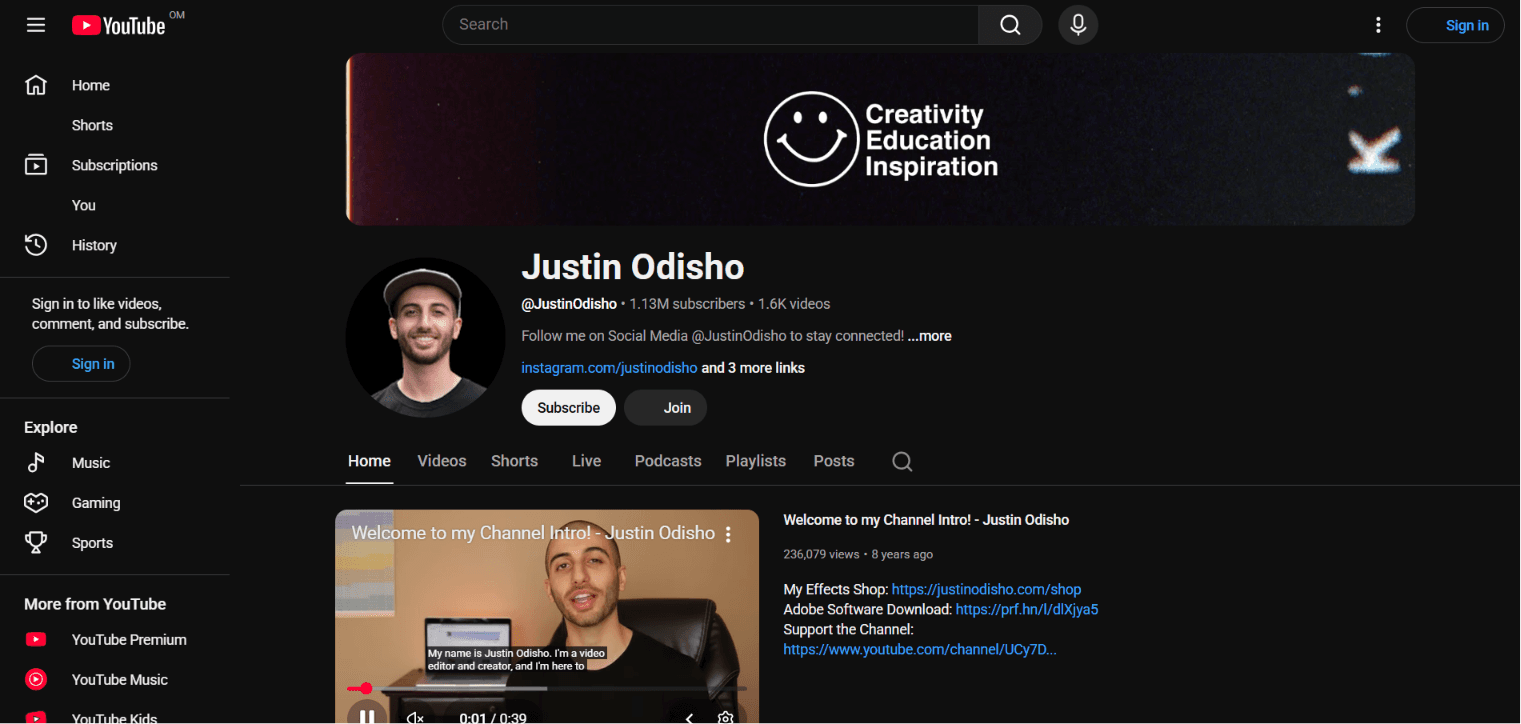
Justin Odisho has been a go-to Premiere Pro teacher for years, and community recommendations still point beginners to his videos. His tutorials are useful because they focus on practical effects, editing techniques, transitions, and beginner-friendly Premiere workflows.
For beginners, Justin’s best use is as a bridge between software basics and creative execution. Once you understand the Premiere interface, his videos help you make things: zooms, text effects, transitions, music-video looks, social edits, and simple motion-based techniques.
Who it is best for:
Premiere Pro beginners
Editors making YouTube, social, music, or creator-style videos
Learners who want practical, repeatable techniques
How to use it:
Choose one playlist or one beginner tutorial. Do not jump from effect to effect. Build a short project where you use only two or three techniques. The goal is control, not clutter.
Best Premiere Pro companion channel: Premiere Gal
Channel: https://www.youtube.com/PremiereGal
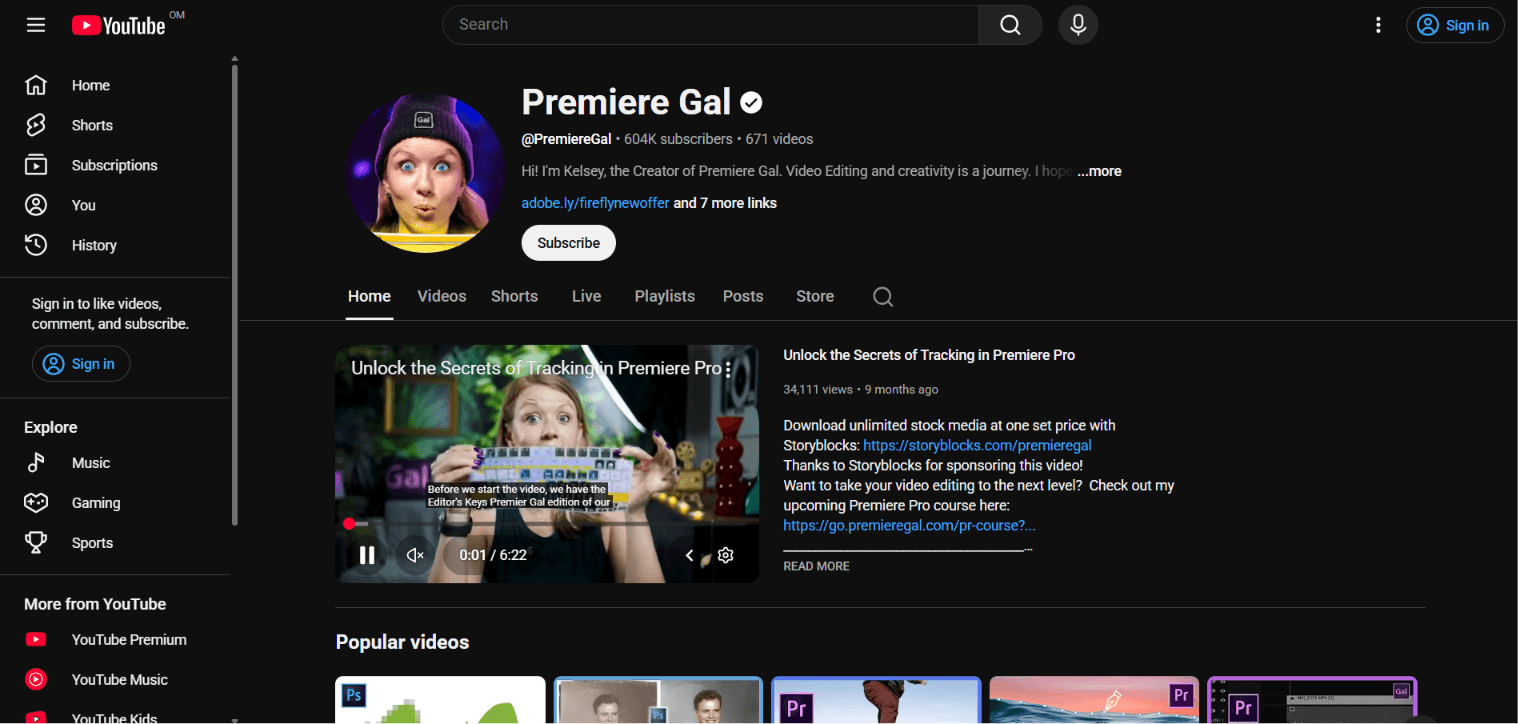
Website: https://premieregal.com/
Premiere Gal, created by Kelsey Brannan, is a strong companion channel for Premiere Pro learners. The content is useful for practical Premiere tips, text, audio, effects, transitions, templates, editing workflows, and common editing questions.
One reason this channel works for beginners is that the lessons are often bite-sized. That makes it easier to solve one issue at a time instead of sitting through long theory-heavy lessons when you only need a practical answer.
Who it is best for:
Premiere Pro beginners who want clear, practical tutorials
Editors working on social, YouTube, brand, or creator videos
Learners who want help with text, effects, audio, and workflow tips
How to use it:
Use Premiere Gal when you are editing and hit a specific problem. For example: better captions, cleaner audio, transitions, masking, or export issues. Pair it with Adobe Learn or Justin Odisho for a stronger beginner path.
Best paid course for creator-style Premiere editing: Storezar by Finzar
Course: https://storezar.com/courses/
YouTube channel: https://www.youtube.com/@finzar
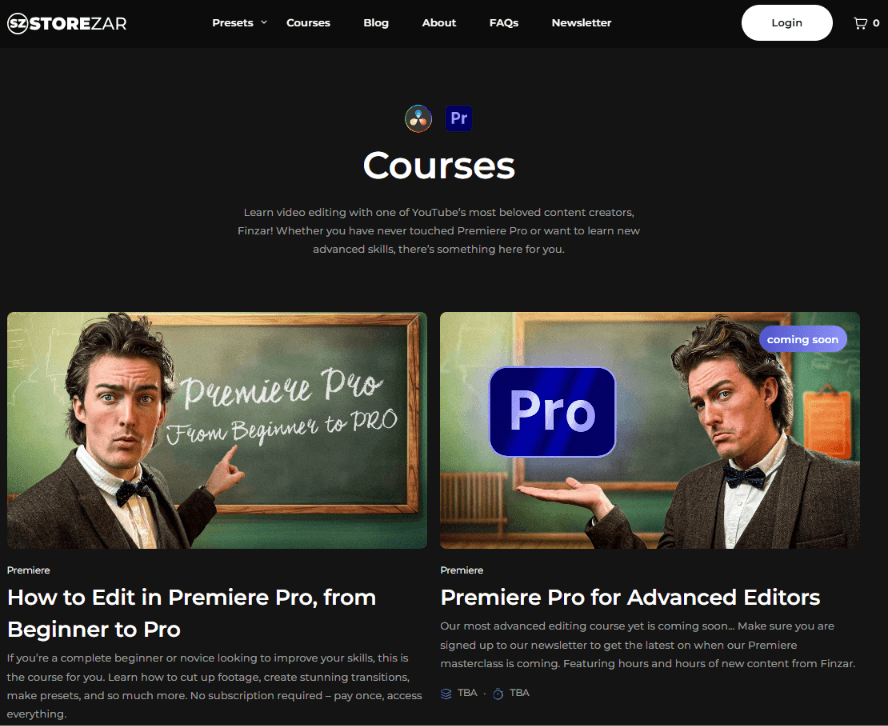
Finzar is often mentioned in creator-style editing conversations, especially for people who want modern YouTube pacing, comedic timing, subtitles, zooms, sound effects, and energetic edits. Storezar is his paid course platform, positioned for complete beginners and novice editors.
This is not the best first resource for every editor. If someone wants documentary editing, commercial finishing, or film-style storytelling, other resources may be better. But for beginners who specifically want YouTube creator editing, Finzar is worth considering.
Who it is best for:
Beginners who want to edit YouTube videos in a fast, creator-focused style
Premiere Pro users who want practical creator workflows
Editors interested in subtitles, punch-ins, sound effects, comedic timing, and social pacing
How to use it:
Before buying any paid creator course, make sure you already know your software basics. You should be able to import clips, make clean cuts, add audio, add text, and export. Paid courses work better when you are ready to apply the lessons immediately.
Best YouTube storytelling course after the basics: Edit Like an Artist by Hayden Hillier-Smith
Course: https://hayden-hillier-smith.mykajabi.com/edit-like-an-artist
Channel: https://www.youtube.com/@HillierSmith
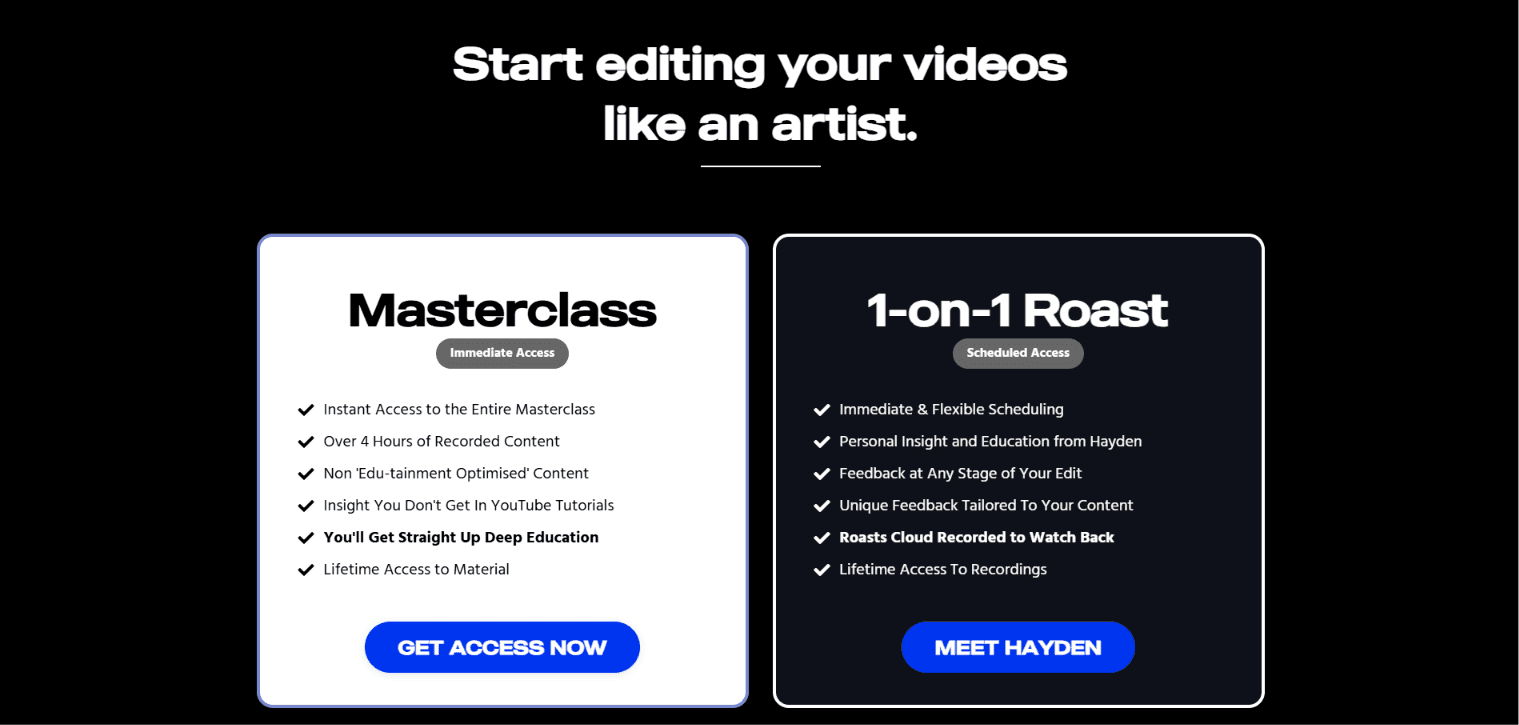
Hayden Hillier-Smith’s work is important because it shifts the conversation away from buttons and into story, pacing, audience attention, and decision-making. His course, Edit Like an Artist, is best seen as a next-stage resource, not necessarily a first course for someone who has never opened an editing timeline.
His YouTube channel is also valuable because it breaks down why edits work. That is the skill most beginners eventually need. Once you know how to cut clips together, the hard part becomes knowing which moments matter, where to hold, where to cut, where to create tension, and how to keep a viewer emotionally involved.
Who it is best for:
Editors who already know basic cutting and want better storytelling instincts
YouTube editors who want to improve pacing and retention
Beginners who have finished a few projects and feel their edits still lack rhythm
How to use it:
Watch one breakdown, then re-edit one of your own videos using the same lesson. Do not just admire the analysis. Convert it into a practical editing decision: cut earlier, hold longer, remove dead space, reframe the hook, or improve the emotional beat.
Best channel for story, emotion, and professional editing judgment: This Guy Edits
Channel: https://www.youtube.com/thisguyedits
Website: https://thisguyedits.com/
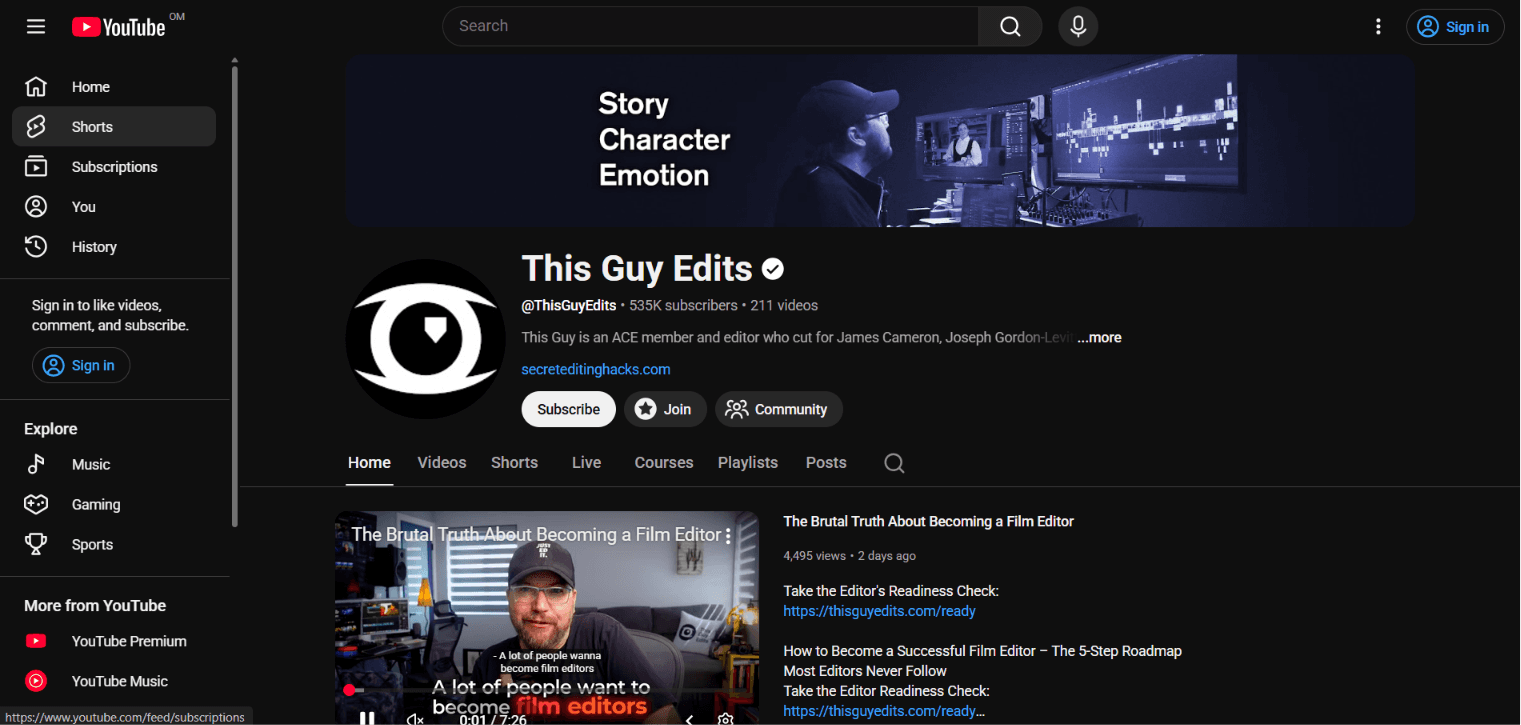
This Guy Edits is one of the best resources for editors who want to understand editing as story, character, and emotion. The channel is run by Sven Pape, an experienced editor, and it often focuses on how editors make creative decisions rather than which button to click.
This is a valuable resource because many beginners over-focus on speed and effects. But professional editing is often about restraint. It is about choosing the right shot, shaping the scene, protecting the performance, and removing anything that weakens the viewer’s attention.
Who it is best for:
Beginners who want to develop taste and judgment
Editors interested in film, documentary, narrative, or long-form YouTube
Learners who want to see editing decisions explained in context
How to use it:
Use this channel once you have basic editing comfort. Watch how scenes are discussed, then apply the same thinking to your own work: what is the point of this scene, what does the viewer need to feel, and which cut makes that clearer?
Best software-agnostic craft course: Film Editing Pro
Website: https://www.filmeditingpro.com/
YouTube channel: https://www.youtube.com/c/FilmEditingPro
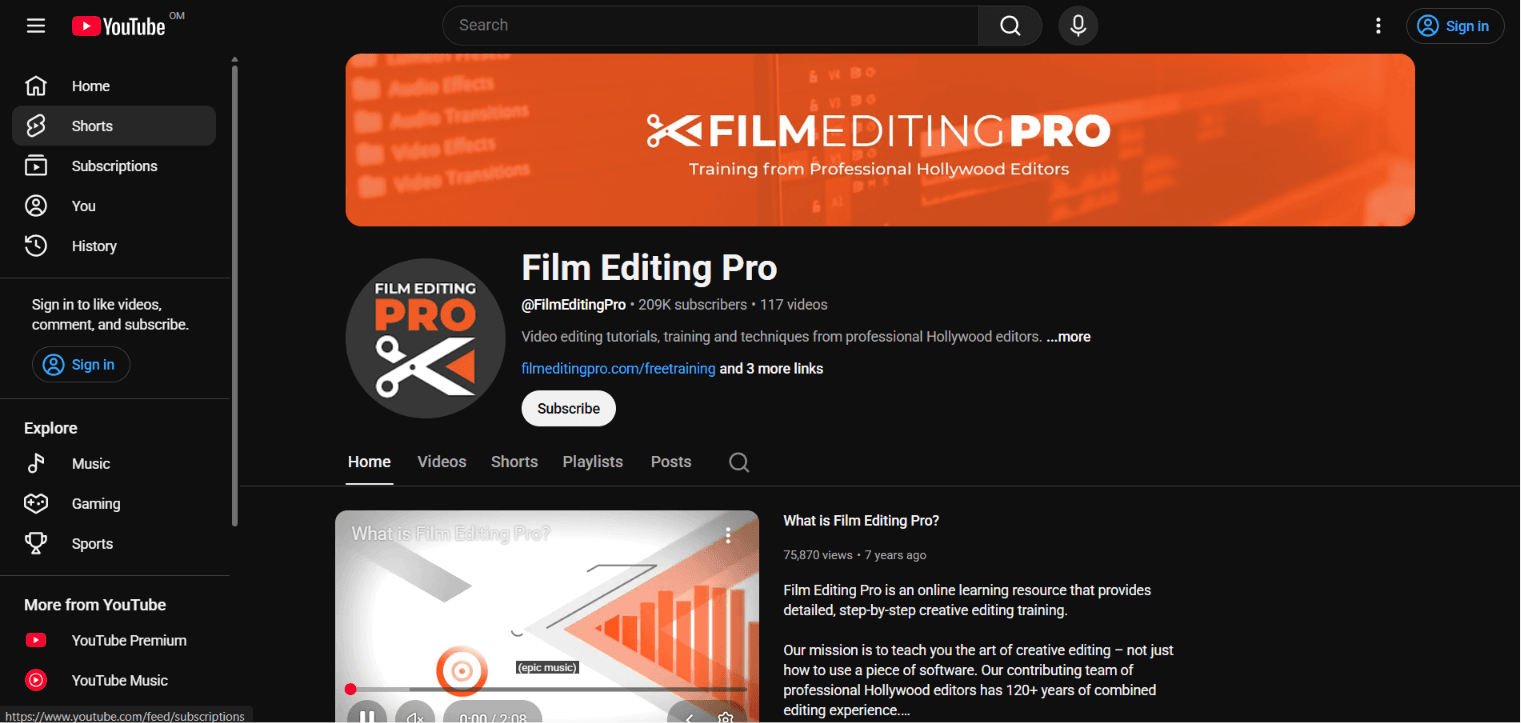
Film Editing Pro is a strong option for editors who want to learn editing techniques that are not tied to one software interface. Its training is built around professional film and video editing concepts, with lessons, footage, music, sound effects, and practical editing exercises.
This is useful because beginners often confuse software skill with editing skill. A good editor should be able to explain why a scene works even before opening Premiere, Resolve, or Final Cut. Film Editing Pro helps build that broader craft foundation.
Who it is best for:
Beginners who already know basic software and want stronger editing craft
Editors interested in trailers, drama, film, promos, and story structure
Learners who want project files and practice-based lessons
How to use it:
Start with the free training, then decide whether the full curriculum matches your goals. If you mostly want YouTube creator edits, Finzar or HillierSmith may feel more relevant. If you want a broader editing craft foundation, Film Editing Pro is a stronger fit.
Best course for editing psychology and pacing: Inside The Edit
Website: https://www.insidetheedit.com/
Channel: https://www.youtube.com/@InsideTheEditStudio
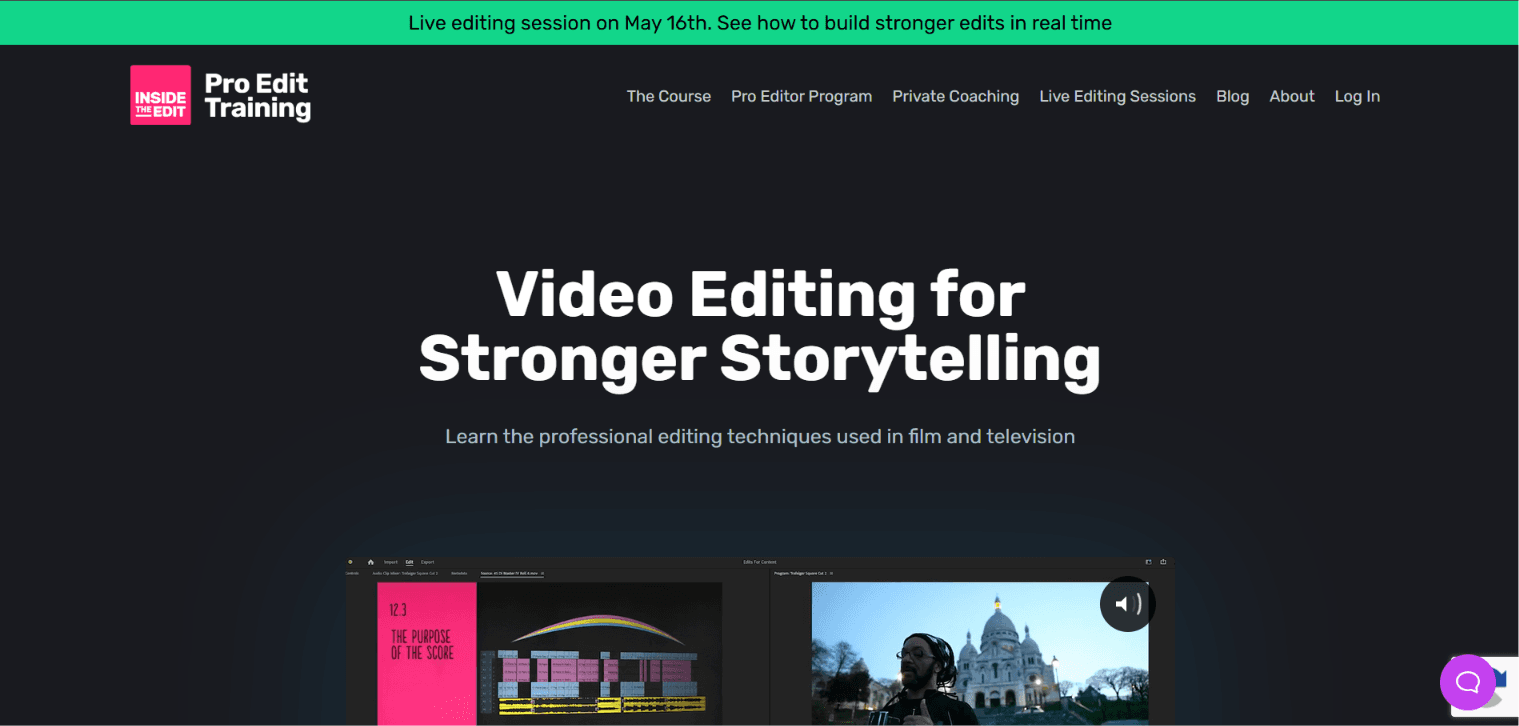
Inside The Edit focuses on creative editing, structure, storytelling, pacing, and the psychology behind editing decisions. It is not the kind of resource you use to learn where a button is. It is for editors who want to understand what to cut, when to cut, and why a sequence feels right or wrong.
For beginners, this should usually come after the first stage of learning. If you have never finished a basic edit, start with official software training first. But if you can already cut simple videos and want to improve the quality of your decisions, Inside The Edit can be a strong next step.
Who it is best for:
Editors who want to understand pacing, story, and structure
Learners moving from software tutorials into professional thinking
Editors who want to improve long-form, documentary, factual, or narrative work
How to use it:
Treat it like craft training. Take notes, apply lessons to real footage, and compare versions of your own edit. The value is in changing how you see a sequence.
Best channel for stylized Premiere and After Effects ideas: Cinecom.net
Channel: https://www.youtube.com/channel/UCpLfM1_MIcIQ3jweRT19LVw
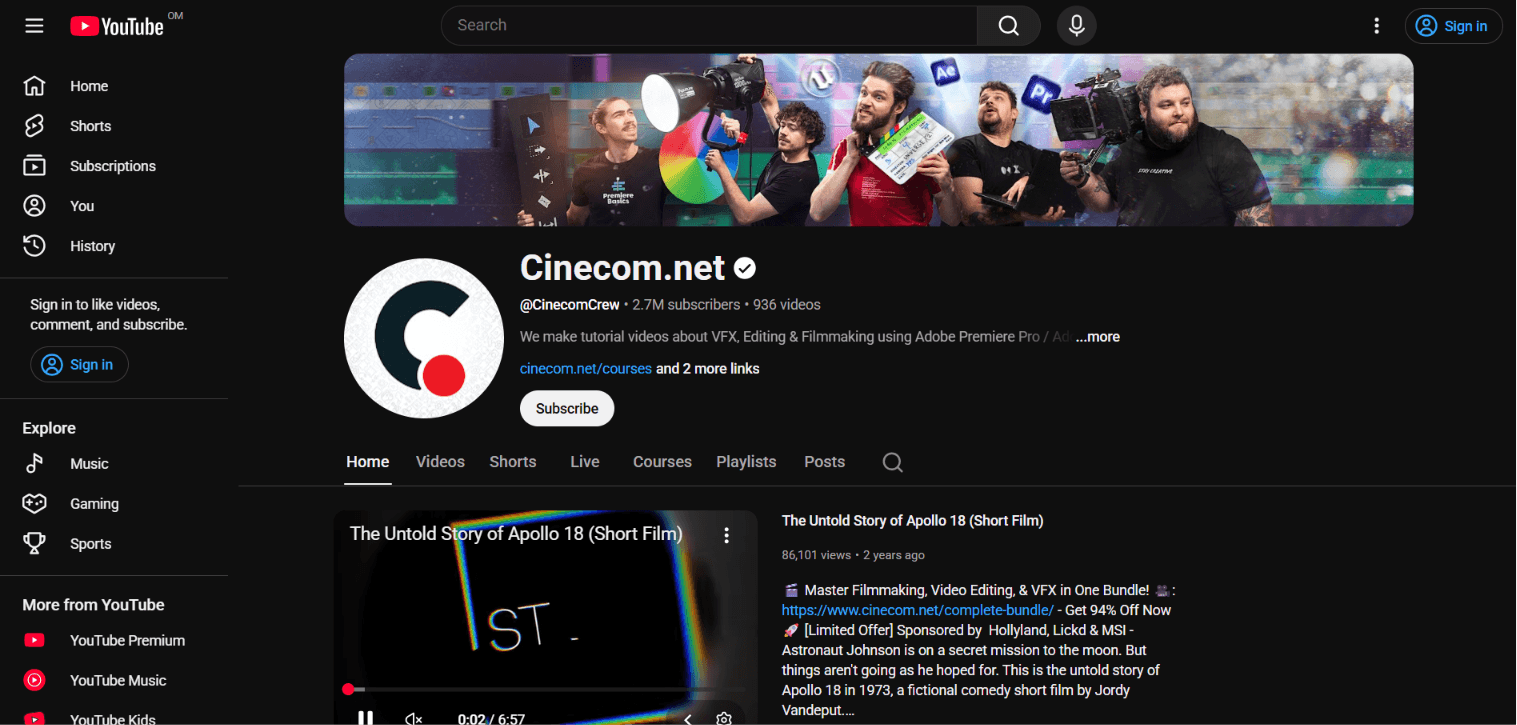
Cinecom.net is useful for editors who want stylized Premiere Pro and After Effects ideas: transitions, effects, camera tricks, motion, and production-led editing concepts. It is not always the best first stop for a complete beginner, but it becomes helpful once you want to make edits look more energetic and designed.
Who it is best for:
Premiere Pro and After Effects learners
Editors making social, YouTube, commercial, or visual effects-led videos
Beginners who already know basic cutting and want more visual style
How to use it:
Use Cinecom selectively. Pick one effect that supports the video. Avoid adding effects just because they look impressive. Style should support the idea, not cover weak editing.
How to choose the right video editing course
Start by asking what you want to edit.
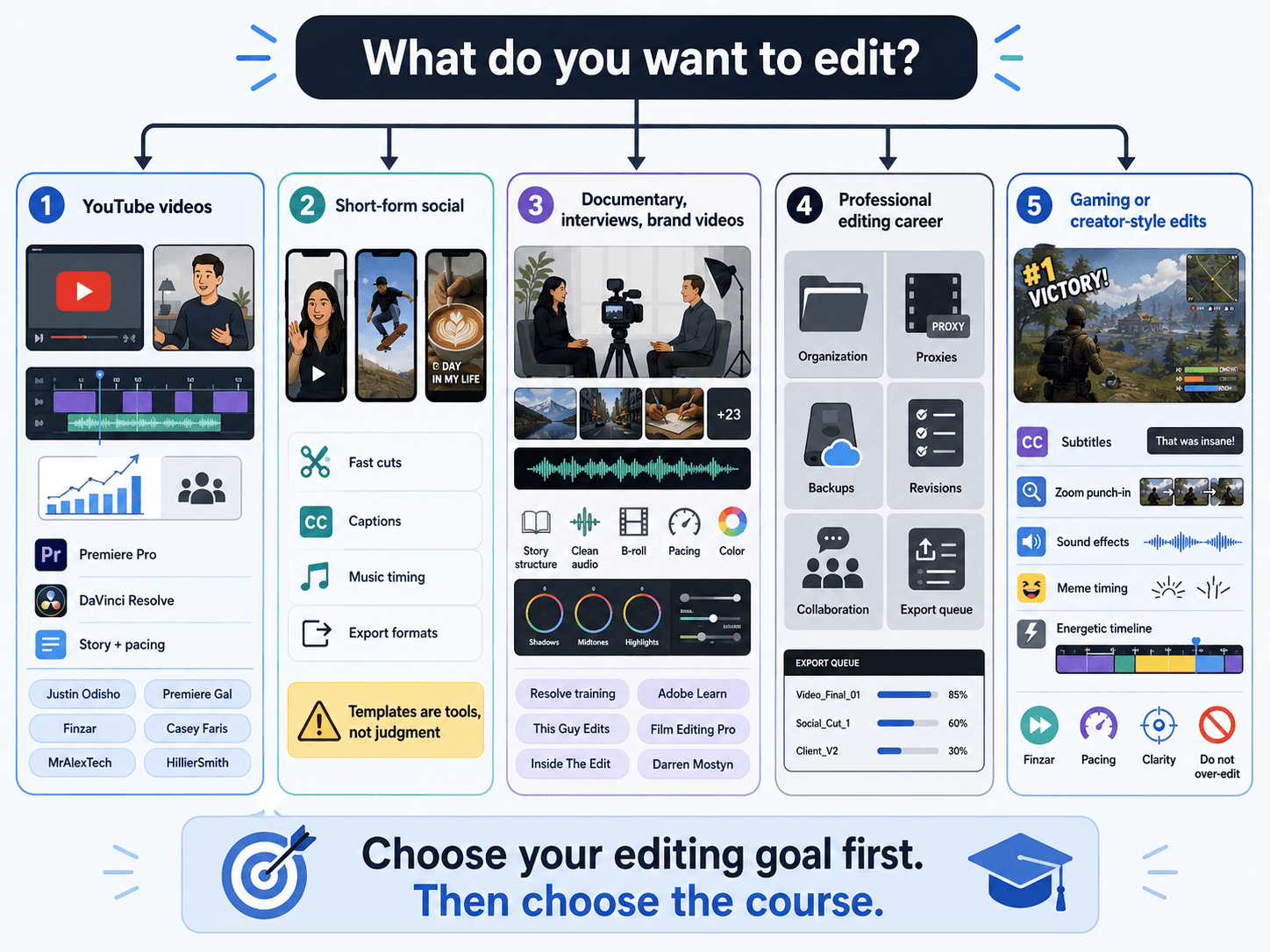
If you want to edit YouTube videos, choose Premiere Pro or DaVinci Resolve and study Justin Odisho, Premiere Gal, Finzar, Casey Faris, MrAlexTech, and HillierSmith.
If you want to edit short-form social content, learn fast cutting, captions, sound effects, music timing, and export formats. Premiere, Resolve, and CapCut can all work, but do not let templates replace editing judgment.
If you want to edit documentaries, interviews, corporate films, or brand videos, study clean story structure, audio, pacing, B-roll, organization, and color correction. Resolve official training, Adobe Learn, This Guy Edits, Film Editing Pro, Inside The Edit, and Darren Mostyn are more useful here.
If you want to become a professional editor, do not rely only on YouTube tips. Learn file organization, naming, proxies, backups, audio cleanup, revisions, client notes, exports, and collaboration. These workflow habits matter as much as creative tricks.
If you want to make gaming videos or creator-style edits, Finzar is highly relevant. But you should still learn the basics of pacing and clarity, or the edit can become noisy.
A beginner practice plan that actually works
Here is a simple 30-day practice plan for new editors.
Week 1: learn the interface. Choose one software. Follow an official beginner course. Make three basic edits: one talking-head cut, one montage, and one short reel. Focus only on clean cuts, audio levels, text, and export.
Week 2: learn rhythm. Edit the same 60-second video three different ways: slow, medium, and fast. Notice how music, pauses, and shot length change the feeling. This teaches timing better than memorizing shortcuts.
Week 3: learn story. Take a 3 to 5 minute piece of footage and cut it down to 60 seconds. Your job is not to keep everything. Your job is to protect the strongest idea. Ask: what is the hook, what is the point, what can be removed?
Week 4: learn polish. Improve audio, color, captions, titles, pacing, and export. Compare your first version and final version. Write down what improved and what still feels weak.
Repeat this cycle with different footage. The goal is finished projects, not endless tutorials.
Common mistakes beginner video editors should avoid
Learning too many tools at once - Beginners often switch from Premiere to Resolve to CapCut to Final Cut because they think the software is the problem. Usually, the real issue is lack of practice.
Copying effects without understanding timing - A zoom, shake, caption, transition, or sound effect only works if it supports the moment. Effects do not create meaning by themselves.
Ignoring audio - Bad audio makes a video feel amateur faster than bad color. Learn dialogue levels, music balance, noise reduction, room tone, and simple sound design early.
Over-editing - Beginners often cut too fast because they think speed equals quality. Good pacing depends on the content. Sometimes the best edit is a pause.
Never finishing - A finished imperfect edit teaches more than an unfinished perfect timeline. Finish, export, review, improve, repeat.
Recommended learning path by editor type
For complete beginners using DaVinci Resolve:
Start with Blackmagic Design’s official DaVinci Resolve training. Then use Casey Faris and MrAlexTech for practical tutorials. Add Darren Mostyn once you are ready for color and finishing.
For complete beginners using Premiere Pro:
Start with Adobe Learn Premiere Pro. Then use Justin Odisho for practical techniques and Premiere Gal for bite-sized workflow help. Add Cinecom.net for stylized effects after you understand the basics.
For YouTube creator editors:
Start with Premiere Pro or Resolve basics. Then study Finzar for creator-style editing and HillierSmith for story, pacing, and audience attention.
For editors who want stronger storytelling:
Use HillierSmith, This Guy Edits, Film Editing Pro, and Inside The Edit. These resources help you understand editing choices beyond the software.
For editors who want professional craft:
Study Film Editing Pro, Inside The Edit, This Guy Edits, Darren Mostyn, and official software training. Also practice organization, revisions, audio, delivery, and client workflows.
FAQ
What is the best video editing course for absolute beginners?
For most beginners, the best first course is free official training. If you use DaVinci Resolve, start with Blackmagic Design’s DaVinci Resolve training. If you use Premiere Pro, start with Adobe Learn Premiere Pro. These resources teach the software in a clean order before you move into creator channels or paid courses.
Should beginners learn DaVinci Resolve or Premiere Pro?
DaVinci Resolve is the best choice if you want a free professional editing tool with editing, color, audio, and effects in one place. Premiere Pro is a strong choice if you want to work in Adobe-based creator, brand, agency, or social video workflows. Choose one and stick with it for at least 5 to 10 projects before switching.
Are paid video editing courses worth it?
Paid courses can be worth it after you know the basics and have a clear goal. Do not buy a paid course because you feel lost. First, complete free official training and finish a few simple edits. Then buy a course if it solves a specific problem: creator-style editing, storytelling, color, client workflow, or professional craft.
How long does it take to become good at video editing?
You can learn basic editing in a few weeks if you practice daily. Getting good takes longer because editing is about judgment, not just software. A realistic beginner goal is to finish 10 small projects in 30 to 60 days. After that, focus on pacing, audio, story, feedback, and revisions.
What should beginner editors practice first?
Practice clean cuts, audio levels, simple titles, music timing, and exports before advanced effects. Then practice reducing a longer piece of footage into a shorter, clearer version. That single skill, knowing what to remove, is one of the most important skills in editing.